The Assistant
Start with an idea in your own words and turn it into a simulation you can review.
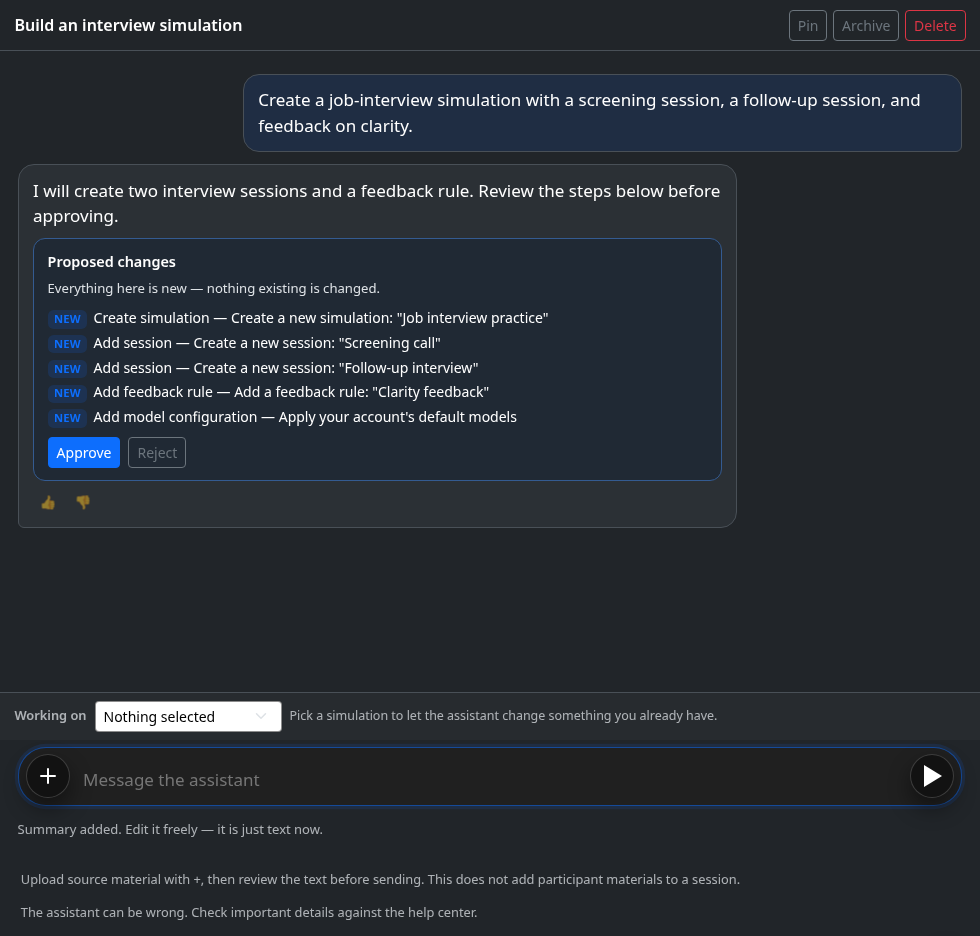
Prisma Assistant answers product questions and proposes simulations, sessions, and feedback rules. You review an Approve / Reject card before any proposed changes are applied. New simulations use the account's managed model defaults, when configured; the assistant does not choose providers or API keys.
Describe what you want
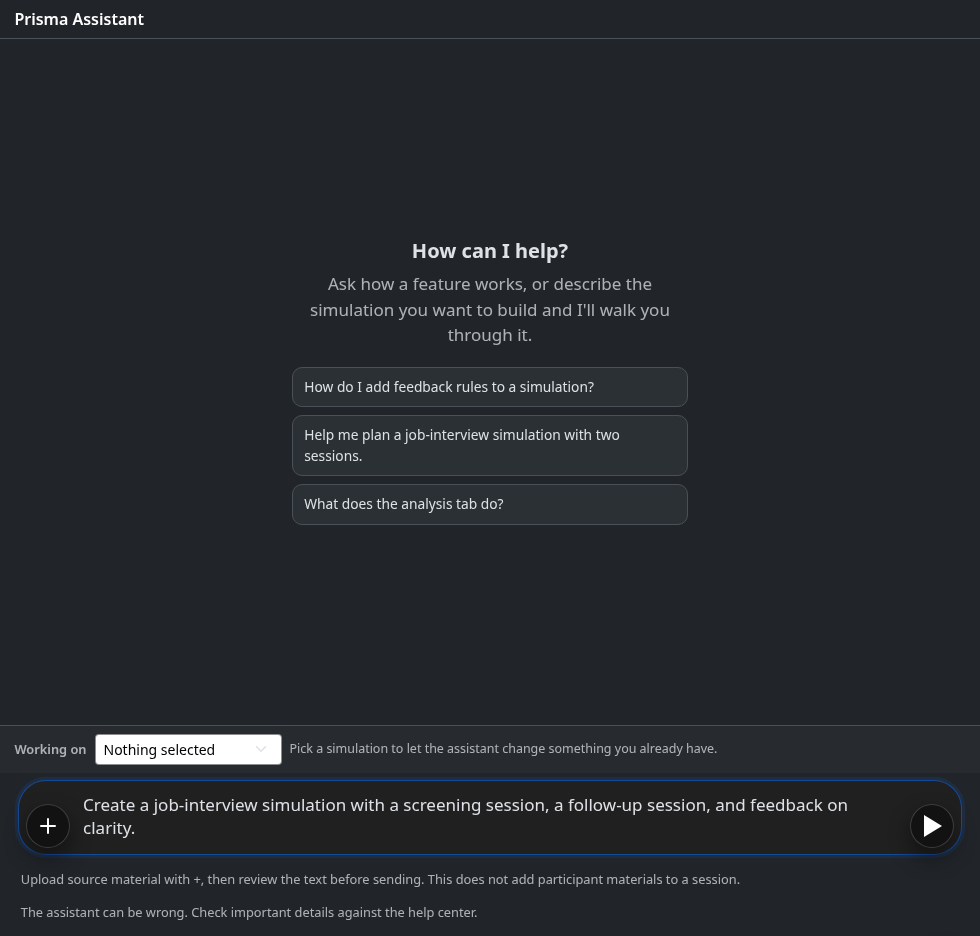
Open Assistant and describe the audience, the AI's role, and what participants should practise. For example: Create a job-interview simulation with a screening session, a follow-up session, and feedback on clarity. For guidance without a build proposal, ask a product question, such as: How do I upload background material for the AI?
Review every proposed change
Read each step on the proposal card. Approve applies the listed changes; Reject leaves your simulation unchanged. If the proposal needs work, reject it and describe the correction. Review the finished simulation before sharing it with participants. Assistant replies use credits.
Select existing work before editing
Open the conversation menu and use Working on to select a simulation you own and, optionally, a session. Without a selection, the assistant can create new work but cannot edit existing work. Select an existing session to edit only that session. To add sessions, select the whole simulation instead. An edit replaces the entire field: include any instructions or uploaded source text you want to keep.
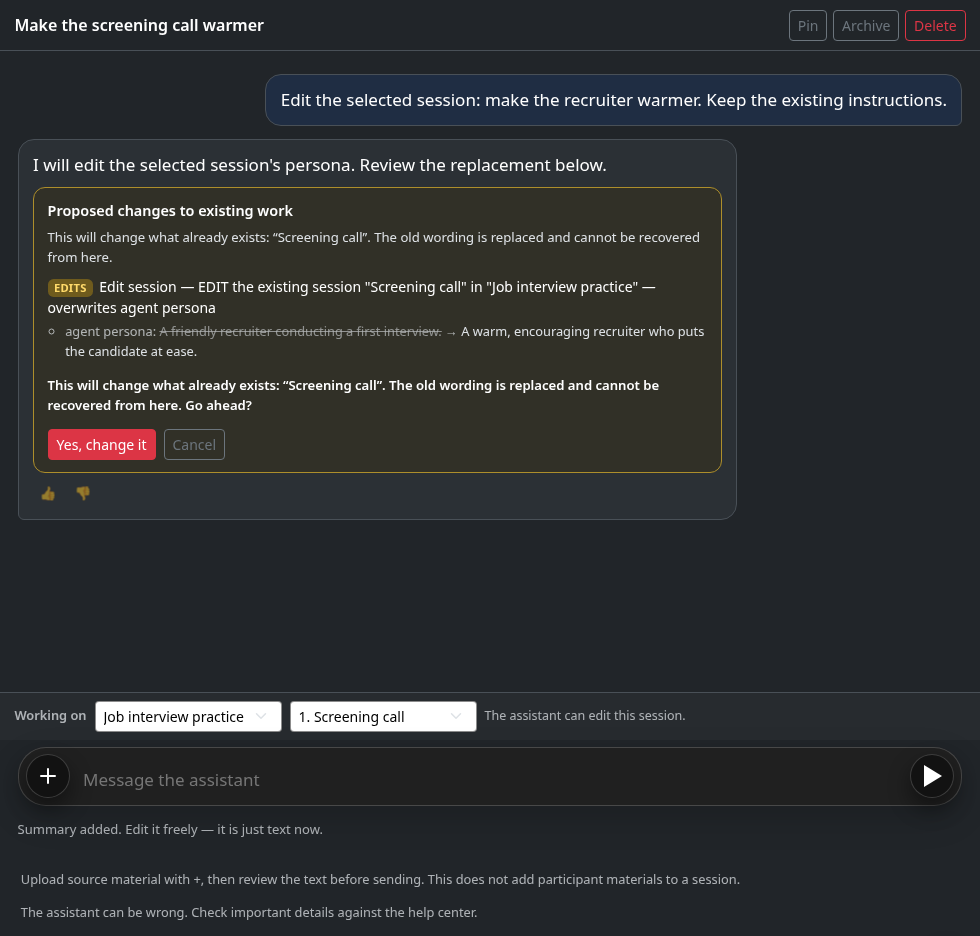
For edits, Approve opens a final confirmation. Read what will be replaced, then choose Yes, change it to apply the edit or Cancel to return to the proposal.
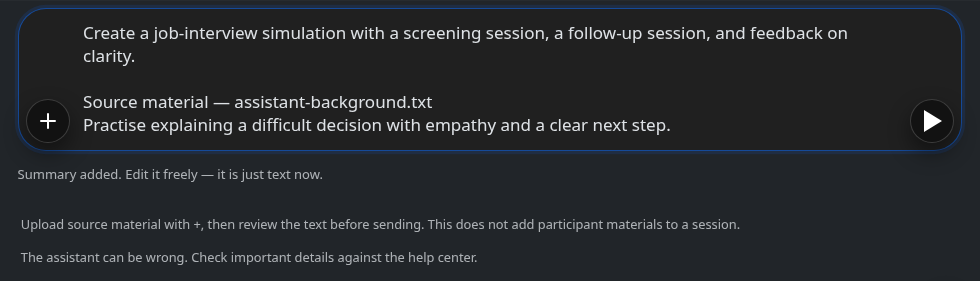
Give the assistant a source file
Choose the circular + button beside the message box and select a document or image. Wait for its extracted text or summary to appear in your draft, add your request, and review it before sending. Keep the draft under 8,000 characters. Uploads here provide background for the assistant; use the session editor to share materials with participants.