Files & Attachments
Give the AI the background it needs and participants the materials they need to practise.
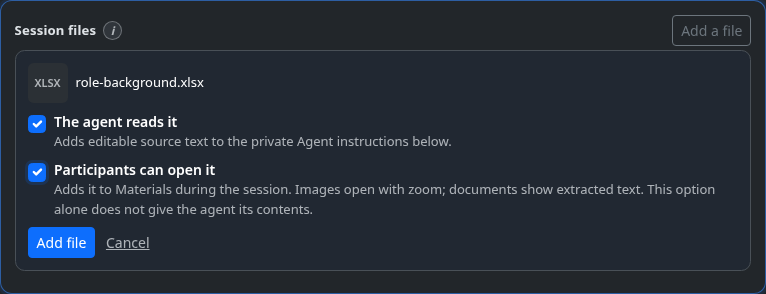
The session editor has one uploader, just above Agent instructions. Choose whether the agent reads the file, participants can open it, or both. The agent receives editable source text; participants receive materials only when you choose to share them. To give the agent background about a shared file, select both options.
Pick a file, then choose what it is for
Open your simulation's Sessions section, add or edit a session, and choose Add a file above Agent instructions. Nothing is uploaded yet: choose The agent reads it, Participants can open it, or both, then click Add file. Wait for processing to finish, review the text and materials, then save the session. Both options share one upload and extraction pass. Cancel a choice card to skip that file.
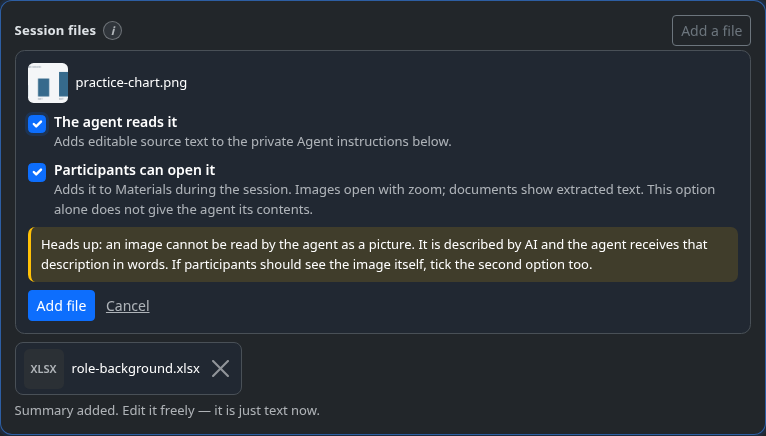
Images reach the agent as words, not pictures
If you ask the agent to read an image, the card warns you: the AI describes the picture and the agent receives that description in text. It never sees the image. For a chart or a map that participants should also look at, tick both options — the agent gets the description, and participants get the picture itself with zoom.
Check the extracted text and save
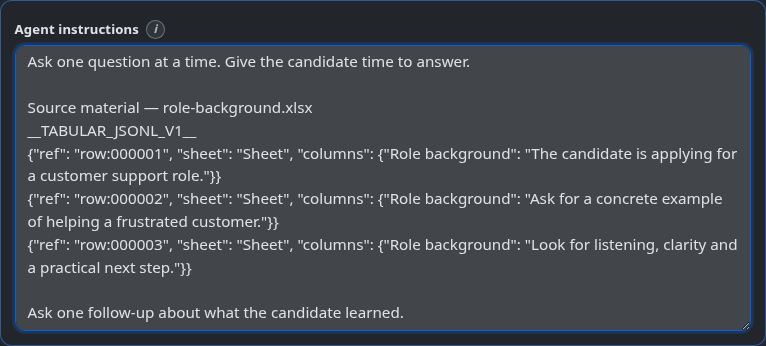
The upload shows whether it is waiting or being read. When credits are unavailable for a document summary, Prisma adds the extracted text for you to shorten. Reading photos and scans still requires credits.
Uploads accept PDF, Word, text, Markdown, RTF, CSV, Excel, and images, up to 25 MB. Extracting text from a document is free; summarizing long text and reading images or scans can use credits. Scanned PDFs are read up to the configured page limit (20 by default), so split longer scans. Check names, numbers, and any chart descriptions, edit the summary freely — it is ordinary text once inserted — then save the session. Uploading the same file again appends a second summary rather than replacing the first, so remove outdated text yourself.
Check the participant's Materials menu
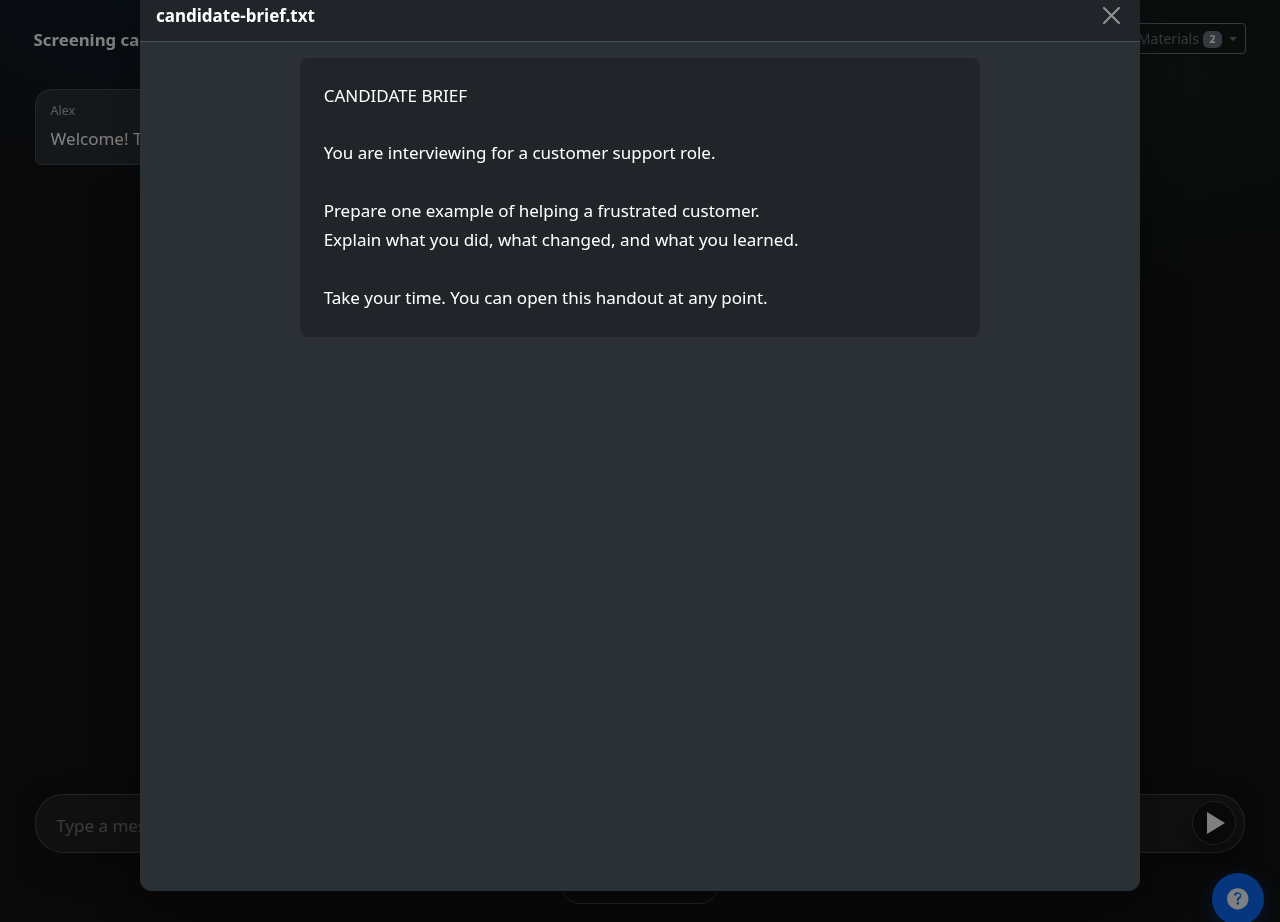
During the session, participants open Materials and choose a file. Images and rendered scan pages open in a viewer with zoom; text documents display extracted text, so PDF formatting may differ. Materials are opened by the participant, with no scheduled reveal control. If a read is incomplete, use a clearer photo or a shorter file, upload it again, and correct the Agent instructions before saving.